
티스토리 뷰
버튼이 이렇게 기본 값으로 올라가 있으면 요즘은 아무리 잘만든 앱이라도 슥 보고 별로라고 생각을 합니다. 워낙 코드가 쉬워지기도 했으니까요. 그런데 WPF는 현시점 2026년 4월인데 클로드 같은 에이전트가 잘못만드는 것 같습니다.

이게 클로드가 만든건데 단순히 예쁘게 만들어라고 하면 엉뚱하게 자꾸 만들거든요.
Border적용하기
일단은 앞에서 배운 Border를 적용 해봅니다.

아래는 오리지널 코드 입니다.
<Button x:Name="PART_BtnZoomIn" Content="+" Width="28" Height="28" FontSize="16" FontWeight="Bold" Margin="4,0,2,0" ToolTip="확대"/>
앞에서 배운 Border를 주는거죠. 일단은 잘 보이게 빨강으로요.
<Button x:Name="PART_BtnZoomIn" Content="+" Width="28" Height="28" FontSize="16" FontWeight="Bold" Margin="4,0,2,0" ToolTip="확대">
    <Button.BorderBrush>
        <SolidColorBrush Color="Red"></SolidColorBrush>
    </Button.BorderBrush>
</Button>
넣었는데 버튼이 많은 화면입니다.

다음과 같이 버튼이 많습니다.
<Button x:Name="PART_BtnOpen" Content="파일 열기" Padding="8,4" Margin="0,0,6,0"/>
<Button x:Name="PART_BtnReloadPalette" Content="팔레트" Padding="8,4" Margin="0,0,6,0"
        ToolTip="지도 색상 팔레트를 편집합니다 (컬러 피커 다이얼로그)"/>
<Separator Style="{StaticResource {x:Static ToolBar.SeparatorStyleKey}}" Margin="4,2"/>
<Button x:Name="PART_BtnZoomIn" Content="+" Width="28" Height="28" FontSize="16" FontWeight="Bold" Margin="4,0,2,0" ToolTip="확대">
    <Button.BorderBrush>
        <SolidColorBrush Color="Red"></SolidColorBrush>
    </Button.BorderBrush>
</Button>
<Button x:Name="PART_BtnZoomOut" Content="-" Width="28" Height="28" FontSize="16" FontWeight="Bold" Margin="2,0,2,0" ToolTip="축소"/>
<Button x:Name="PART_BtnZoomReset" Content="1:1" Height="28" Padding="6,0" Margin="2,0,6,0" ToolTip="원본 크기"/>
<Separator Style="{StaticResource {x:Static ToolBar.SeparatorStyleKey}}" Margin="4,2"/>
<CheckBox x:Name="PART_ShowDiscoveries" Content="발견물" VerticalAlignment="Center" Margin="0,0,8,0" IsChecked="True"/>
<CheckBox x:Name="PART_ShowCityLabels" Content="도시명" VerticalAlignment="Center" Margin="0,0,8,0"/>
<CheckBox x:Name="PART_HideFound" Content="미발견만" VerticalAlignment="Center" Margin="0,0,8,0"/>
<CheckBox x:Name="PART_ShowSpeed" Content="속도" VerticalAlignment="Center" Margin="0,0,8,0" ToolTip="이동 경로에 구간 속도 표시"/>
<!--중략-->
버튼 3개만 적용 했는데 현타 옵니다. 일단 버튼이 많이 남아 있구요 단순히 빨간색 테두리만 쳐놓으면 더 만들다 만 것 같으니까요.

<Button x:Name="PART_BtnOpen" Content="파일 열기" Padding="8,4" Margin="0,0,6,0">
    <Button.BorderBrush>
        <SolidColorBrush Color="Red"></SolidColorBrush>
    </Button.BorderBrush>
</Button>
<Button x:Name="PART_BtnReloadPalette" Content="팔레트" Padding="8,4" Margin="0,0,6,0"
        ToolTip="지도 색상 팔레트를 편집합니다 (컬러 피커 다이얼로그)">
    <Button.BorderBrush>
        <SolidColorBrush Color="Red"></SolidColorBrush>
    </Button.BorderBrush>
</Button>
<Separator Style="{StaticResource {x:Static ToolBar.SeparatorStyleKey}}" Margin="4,2"/>
<Button x:Name="PART_BtnZoomIn" Content="+" Width="28" Height="28" FontSize="16" FontWeight="Bold" Margin="4,0,2,0" ToolTip="확대">
    <Button.BorderBrush>
        <SolidColorBrush Color="Red"></SolidColorBrush>
    </Button.BorderBrush>
</Button>
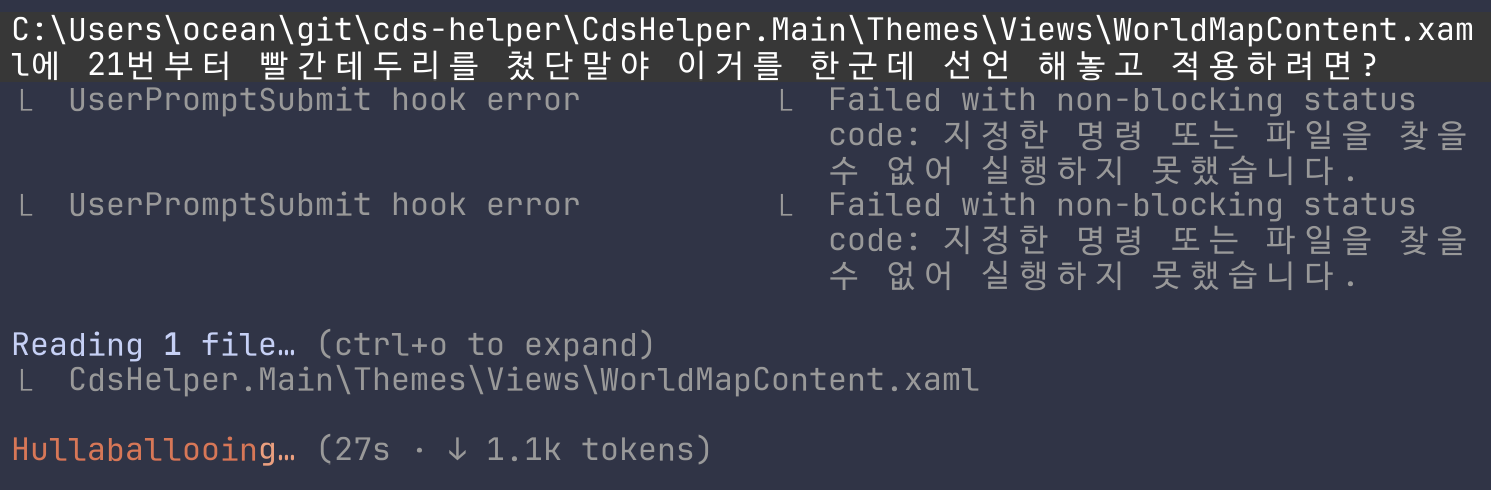
바이브코딩을 당연히 해서 물어보면 되지만 UI작업은 Cost가 엄청 높습니다. 어차피 Max Plan같은거 쓰면 비용이 더 늘어나진 않는데 시간이 오래걸려요. 이 간단한것 답변 하는데 27초가 뭡니까 토큰도 1000개 넘게 썼네요. 토큰 문제가 아니고 우리에게 시간은 곧 비용입니다. 물론 인터넷 서칭 해서 하는것에 비하면 빠른데 점점 딮하고 깔끔하게 들어갈 수록 이 비용이 증가 합니다.
스타일 선언 하기
그래서 앞에서 했던 것 처럼 스타일로 뽑아보겠습니다.
참고로 지금 고치는 기능은 ResourceDictionary라고 CustomControl로 정의한 MenuBar입니다. Style 설명 하고 있으니까 여기에서는 ResourceDictionary에서 다루지는 않습니다. 바로 스타일 선언 해보겠습니다.
<ResourceDictionary xmlns="http://schemas.microsoft.com/winfx/2006/xaml/presentation"
                    xmlns:x="http://schemas.microsoft.com/winfx/2006/xaml"
                    xmlns:views="clr-namespace:CdsHelper.Main.UI.Views">
앞에서 써봤던 x:Key로 BorderRed로 선언 해줍니다. 그리고 버튼에 붙일것이기 때문에 TargetType을 버튼으로 넣어 줍니다.
<Style x:Key="BorderRed" TargetType="Button"></Style>
스타일 적용
기존 버튼에 스타일을 적용 해줍니다. 파일 열기 버튼입니다.
Aefore
<Button x:Name="PART_BtnOpen" Content="파일 열기" Padding="8,4" Margin="0,0,6,0">
    <Button.BorderBrush>
        <SolidColorBrush Color="Red"></SolidColorBrush>
    </Button.BorderBrush>
</Button>
After
<Button x:Name="PART_BtnOpen" Content="파일 열기" Padding="8,4" Margin="0,0,6,0"
        Style="{StaticResource BorderRed}"/>
스타일은 적용 했지만 빨간 테두리는 빠졌죠? 스타일 다시 넣어주겠습니다. 이번에는 파란색으로

위에 파란색 글자가 비슷한 색을 찾아보니 DodgerBlue라서 적용 해보았습니다. 테두리가 파란색으로 바뀌었습니다. 나머지 버튼들에도 적용 해봅니다.
<Style x:Key="BorderRed" TargetType="Button">
    <Setter Property="BorderBrush" Value="DodgerBlue"></Setter>
</Style>
Style=하고 StaticResource로 BorderRed지정 했습니다.
<Button x:Name="PART_BtnOpen" Content="파일 열기" Padding="8,4" Margin="0,0,6,0"
        Style="{StaticResource BorderRed}"/>
<Button x:Name="PART_BtnReloadPalette" Content="팔레트" Padding="8,4" Margin="0,0,6,0"
        ToolTip="지도 색상 팔레트를 편집합니다 (컬러 피커 다이얼로그)"
        Style="{StaticResource BorderRed}"/>
<Separator Style="{StaticResource {x:Static ToolBar.SeparatorStyleKey}}" Margin="4,2"/>
<Button x:Name="PART_BtnZoomIn" Content="+" Width="28" Height="28" FontSize="16" FontWeight="Bold" Margin="4,0,2,0" ToolTip="확대"
        Style="{StaticResource BorderRed}"/>
<Button x:Name="PART_BtnZoomOut" Content="-" Width="28" Height="28" FontSize="16" FontWeight="Bold" Margin="2,0,2,0" ToolTip="축소"
        Style="{StaticResource BorderRed}"/>
<Button x:Name="PART_BtnZoomReset" Content="1:1" Height="28" Padding="6,0" Margin="2,0,6,0" ToolTip="원본 크기"
        Style="{StaticResource BorderRed}" />
배경 칠하기 - Background
버튼에 테두리만 칠한다고 UI가 갑자기 성의있어보이진 않습니다. 아직도 되는대로 만든 것 같죠? 배경도 깔아보겠습니다. 배경은 Background속성입니다.
<Style x:Key="BorderRed" TargetType="Button">
    <Setter Property="BorderBrush" Value="DodgerBlue"></Setter>
    <Setter Property="Background" Value="DodgerBlue"></Setter>
</Style>

네 좀 나아 졌나요? 아직 별로입니다. 조금 예쁜 버튼이 있습니다.

살펴보니 다음 3가지 특성이 있네요.
- 모서리를 둥글게 해주고
- 색이 조금 진하고
- 글자가 하얀색
스타일을 공통으로 뽑아 놓으니 한번에 넣어볼 수 있겠죠? 하지만 1번 모서리를 둥글게 하는건 Border Radius인데 아쉽게도 Button은 Radius속성이 없습니다. 일단 글자색 Foreground부터 흰색으로 바꿔보죠.
<Style x:Key="BorderRed" TargetType="Button">
    <Setter Property="BorderBrush" Value="DodgerBlue"></Setter>
    <Setter Property="Background" Value="DodgerBlue"></Setter>
    <Setter Property="Foreground" Value="AliceBlue"></Setter>
</Style>

잘 바뀌었고 조금은 자연스러운 모양이 되었습니다. Radius는 다음 포스에서 계속.
- Total
- Today
- Yesterday
- 이직
- docker container tissue
- Linux
- docker container whale
- docker container tissue box
- shellscript
- Sh
- docker container case
- 도커티슈박스
- 도커각티슈케이스
- 도커컨테이너
- docker container
- 싱가폴
- 도커티슈케이스
- vim
- 개발자
- 2017 티스토리 결산
- 도커각티슈박스
| 일 | 월 | 화 | 수 | 목 | 금 | 토 |
|---|---|---|---|---|---|---|
| 1 | 2 | |||||
| 3 | 4 | 5 | 6 | 7 | 8 | 9 |
| 10 | 11 | 12 | 13 | 14 | 15 | 16 |
| 17 | 18 | 19 | 20 | 21 | 22 | 23 |
| 24 | 25 | 26 | 27 | 28 | 29 | 30 |
| 31 |